Saturday, May 9, 2020

How to restrict File Types (extensions) in PeopleSoft

I recently had a requirement to only allow certain types of files to be uploaded to PeopleSoft.

I wanted a solution that didn't require custom PeopleCode and didn't have to!

The File Extension List allows to specify allowed file extensions and attach this list
to the URL with a FILE_EXT_LIST property.

For this example I will be attaching a file to an expense report using the Financials/Supply Chain PUM Image 35.

In the first step we will create the File extension list:

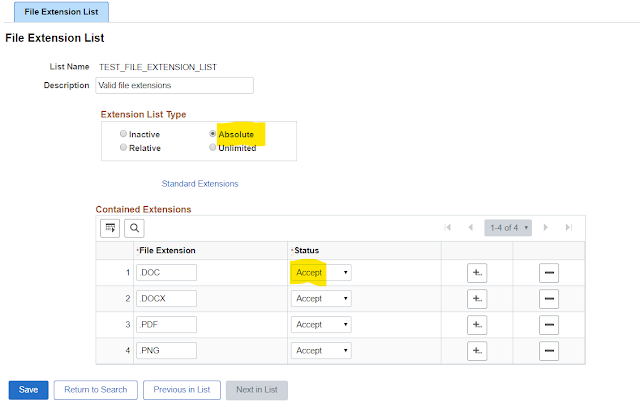
Navigate to PeopleTools, Utilities, Administration, Administer File Processing, File Extension List


Here you can set up list of file types, by file extensions which either can accept or reject when you do file attachments to your system. In our example below we have allowed .DOC, .DOCX .PNG and .PDF extensions. The option of Absolute tells the system which extensions are explicitly enumerated and have a status of accept.


In the second step we will add the TEST_FILE_EXTENSION_LIST to the URL properties on the Voucher attachment URL. We will use the FILE_EXT_LIST Property.


We can test this by adding an invalid file to an expense report and see the error.


Hope you found this useful!


Tuesday, March 24, 2020

Changing tablespace values in PeopleSoft

I recently had a project where I had an issue having to change the tablespaces for many records. Here is a handy script that will allow you to change the tablespace value and avoid build errors.

Enjoy!

Update PSRECTBLSPC
SET DDLSPACENAME = '<New_TablespaceName>'
WHERE DDLSPACENAME = '<Old_TablespaceName>'
and RECNAME IN (Select A.OBJECTVALUE1 from PSPROJECTITEM A, PSRECDEFN B
               Where A.PROJECTNAME = '<PROJECTNAME>' and A.OBJECTTYPE = 0 and A.OBJECTID1 = 1 and A.OBJECTVALUE1 = B.RECNAME and B.RECTYPE =0);

Wednesday, May 9, 2018

Unified Navigation refresh SQL Script

I am using Unified Navigation in my Portal (Interaction Hub) environment. When a database that is refreshed from production I needed a quick way to update the Unified Navigation configuration information with SQL. Here is the updates I have found useful in my environment. 


--Interaction Hub Unified Navigation refresh:
--Remote Content
UPDATE PS_PTUN_DDMENUCFG
SET MSGNODENAME = (SELECT MSGNODENAME FROM PSTRUSTNODES WHERE MSGNODENAME LIKE 'HR%'), 
DESCR30 = (SELECT MSGNODENAME FROM PSTRUSTNODES WHERE MSGNODENAME LIKE 'HR%'),
PORTAL_OBJNAME1 = (SELECT MSGNODENAME FROM PSTRUSTNODES WHERE MSGNODENAME LIKE 'HR%') || ':PORTAL_ROOT_OBJECT'
WHERE MSGNODENAME = '<HR_PRODUCTION_NODE>';

UPDATE PS_PTUN_DDMENUCFG
SET MSGNODENAME = (SELECT MSGNODENAME FROM PSTRUSTNODES WHERE MSGNODENAME LIKE 'CS%'), 
DESCR30 = (SELECT MSGNODENAME FROM PSTRUSTNODES WHERE MSGNODENAME LIKE 'CS%'),
PORTAL_OBJNAME1 = (SELECT MSGNODENAME FROM PSTRUSTNODES WHERE MSGNODENAME LIKE 'CS%') || ':PORTAL_ROOT_OBJECT'
WHERE MSGNODENAME = '<CS_PRODUCTION_NODE>';

--Message Nodes
--HCM Node
UPDATE PSUN_CFGHNODE
SET MSGNODENAME = (SELECT MSGNODENAME FROM PSTRUSTNODES WHERE MSGNODENAME LIKE 'HR%')
WHERE MSGNODENAME = '<HR_PRODUCTION_NODE>';

--Campus Node
UPDATE PSUN_CFGHNODE
SET MSGNODENAME = (SELECT MSGNODENAME FROM PSTRUSTNODES WHERE MSGNODENAME LIKE 'CS%')
WHERE MSGNODENAME = '<CS_PRODUCTION_NODE>';

--Structure & Content
UPDATE PSPRSMDEFN 
SET PORTAL_LABEL = (SELECT MSGNODENAME FROM PSTRUSTNODES WHERE MSGNODENAME LIKE 'HR%')
WHERE PORTAL_CNTPRV_NAM = '<HR_PRODUCTION_NODE>';

UPDATE PSPRSMDEFN 
SET PORTAL_LABEL = (SELECT MSGNODENAME FROM PSTRUSTNODES WHERE MSGNODENAME LIKE 'CS%')
WHERE PORTAL_CNTPRV_NAM = '<CS_PRODUCTION_NODE>';

--Folder Attributes
UPDATE PSPRSMSYSATTRVL 
SET PORTAL_ATTR_VAL = (SELECT MSGNODENAME FROM PSTRUSTNODES WHERE MSGNODENAME LIKE 'HR%')
WHERE PORTAL_ATTR_VAL LIKE '<HR_PRODUCTION_NODE>';

UPDATE PSPRSMSYSATTRVL 
SET PORTAL_ATTR_VAL = (SELECT MSGNODENAME FROM PSTRUSTNODES WHERE MSGNODENAME LIKE 'CS%')
WHERE PORTAL_ATTR_VAL LIKE '<CS_PRODUCTION_NODE>';

UPDATE PSPRSMSYSATTRVL 
SET PORTAL_ATTR_VAL = (SELECT MSGNODENAME FROM PSTRUSTNODES WHERE MSGNODENAME LIKE 'CS%') || ':PORTAL_ROOT_OBJECT'
WHERE PORTAL_ATTR_VAL LIKE 'CS%ROOT%';

UPDATE PSPRSMSYSATTRVL 
SET PORTAL_ATTR_VAL = (SELECT MSGNODENAME FROM PSTRUSTNODES WHERE MSGNODENAME LIKE 'HR%') || ':PORTAL_ROOT_OBJECT'
WHERE PORTAL_ATTR_VAL LIKE 'HR%ROOT%';


Thursday, May 25, 2017

VirtualBox PUM Image PIA not running due to lack of space

I have been running a new VirtualBox HR PUM Image for several weeks. I've recently been unable to login into the image even though it appears to be running. I ran across an article on MOS that talked about the disk becoming full and that was my problem.

Over time you will have log and core files that will build up and not allow the PIA and other processes to start due to a lack of space for the log files. You can log in to the Image as the root user and run the "df -k" command to view available space.


The solution is to remove core dump files (core.*), trace files, log files and cache files from
the directories. I removed all of these files from the following directories:

/home/psadm2/psft/pt/8.55/appserver/APPDOM
/home/psadm2/psft/pt/8.55/appserv/prcs/PRCSDOM
/home/psadm2/psft/pt/8.55/appserv/prcs/PRCSDOM/LOGS
/home/psadm2/psft/pt/8.55/webserv/peoplesoft/applications/peoplesoft/PORTAL.war/ps/cach


I restarted the Image after I removed these files and the Application Server and PIA domain started normally. I use an FTP client to connect to the PUM Image.


Friday, February 24, 2017

Unified Navigation in PeopleTools 8.55

I recently installed Unified Navigation in a 8.55 fluid environment. I installed the workcenter from the latest IH PUM Image (Doc ID 1641843.2). Here are some import/export DMS scripts and a App Designer project to help in migrating this to your environment. Big thanks to Simon Chiu for assistance with the Unified Nav functionality.

1) Run your export script (Click here to download) in IH PUM Image 3 to create the DAT file
2) Run the import script (Click here to download) in your IH environment to import the workcenter and activity guide
3) Copy the app designer project (Click here to download) into your IH environment
4) Bounce your app/web server for changes to take effect
5) From the Navigator menu go to Portal Administration->Unified Navigation Workcenter
    -Note: You might have to add the Portal security role to your security if you get an error          

Friday, January 13, 2017

PSAdmin.io Deployment Package course

Dan Iverson has put together a new course on the PeopleSoft DPK. He does a very nice job explaining how to build out a PeopleSoft infrastructure.

PSAdmin.io DPK course

Wednesday, December 14, 2016

Heap Size for Change Assistant

My use of Change Assistant has increased while doing regular PUM updates in 9.2 environments. I've recently realized how to change the heap size for the Change Assistant and have seen improvement in performance. In my case I set the maximum heap size to 2048. Here's how I did it.

1) Right click on the CA desktop shortcut and choose Properties
2) In the Target text box append -Xmx2048m to the end. It will look like this:


Thursday, June 16, 2016

PSAdmin.io

I've recently discovered a very cool community PeopleSoft resource. It's called psadmin.io (http://psadmin.io/).  Dan Iverson and Kyle Benson do a great job of podcasts pertaining to all things PeopleSoft. There is even a quickstart DPKcourse as well as a community forum. I would encourage everyone to check it out.

Tools 8.55 Change Assistant improvements

The last PUM upgrade I did using the new Change Assistant in tools 8.55. I discovered a couple new features that I really like with this version:

1) The ability to have multiple versions of CA installed. The setup program will now prompt if you want to replace or install a new version. This is nice because you will no longer have to have different versions on different machines

2)The ability to export and import configuration settings. Once you have environments setup in one CA instance you can create a zip file and then reimport those later or use with a different version.

Friday, March 18, 2016

Installing PeopleSoft HCM 9.2 Image 16 on VirtualBox Part 1


This is the first HCM image PeopleSoft has delivered on PeopleTools 8.55. This image also uses Deployment Packages (DPK). The DPK contains all required software (database, application server, web server and client software), pre-installed and patched. I will detail my installation steps:

1    1)Navigate to the Oracle PUM HCM homepage (Doc ID 1641843.2) and download the VirtualBox image files into a directory on your local computer.


      2) Unzip the first file HCM-920-UPD-016-OVA_1of15.zip. This will create a setup folder in the same directory.


3    3) You will now need to run the Powershell script, psft-dpk-setup.ps1 located in the setup folder.
    
      4)Open the Powershell program and navigate to the setup folder. (In my case it was E:\VirtualMachines\HCMPI016).


      5) Run the script ./psft-dpk-setup.ps1. In some cases you may have to run the following command,Set-ExecutionPolicy Unrestricted, if you receive an error when trying to run the script. The script will extract all the files and then prompt for options


      6)The script will prompt for more options and then automatically start VirtualBox and continue installation.


      7) Enter the root password – This will be used later

     8) If you enter a hostname, use lowercase.


      9)  Once the DPKs are extracted the database, web server, application server and samba share will be configured and the process will be complete.


1    10)You can log in as the root user and type ifconfig to confirm your IP Address


     11) You can now navigate to the URL http://192.168.56.101:8000/ps/signon.html using your browser.


Thursday, March 17, 2016

SAML overview

I've been researching SAML integration with PeopleSoft. If you are new to SAML, this is a pretty good high level overview from the guys at Centrify.

https://www.youtube.com/watch?v=S9BpeOmuEz4

Monday, November 16, 2015

Viewing the PUM share on Windows 7

If you use Windows 7 and cannot see the share you might check the following setting on your registry:

  • Open a command prompt window and run regedit.exe
  •   Goto HKEY_LOCAL_MACHINE\SYSTEM\CurrentControlSet\services\LanmanWorkstation\Parameters
  •   Change the subkey "RequireSecuritySignature" value from 1 to 0.
  •   Reboot the machine


Tuesday, November 10, 2015

SQR source files in PUM Images

Update on this. In the newer images PeopleSoft has put the source files under the PS_APP_HOME directory. I've also been using FileZilla FTP client as I found that WinSCP was disconnecting me while downloading large files.

1) Log into the PUM via FTP client using the root user (I use FileZilla)
2) Navigate to the /opt/oracle/psft/pt/ps_app_home/sqr directory

I recently had a need to look at one of the delivered SQR source files in the HR PUM Image. Here is how you get there when the PUM Image is running:

1) Log into the PUM via FTP client using the root user (I use WinSCP)
2) Navigate to the /opt/oracle/psft/ptdb/apptools/sqr directory

Thanks to Sasank Vemana for the assistance on this! You can check out his blog here

Tuesday, July 21, 2015

DoModal using PeopleTools 8.53

I have been trying to create modal windows in PeopleTools 8.53 using the delivered DoModal() function. I was unsuccessful until I ran across this article on MOS (Doc ID 1390037.1). You need to go to your web profile and add a custom property called EnablePCModal, type: Boolean, value: true. Be aware this is a sytem wide change so you'll want to test accordingly.

Wednesday, May 20, 2015

PS Utilities for Chrome Extension

I recently found a nifty tool that works with the Chrome browser called PS Utilities. It is very handy to find page and field information. Check it out here:

https://chrome.google.com/webstore/detail/ps-utilities/jajoopnifcliapcngocgiidifkmboemc?utm_source=gmail

Thursday, May 14, 2015

Finding Query tree and access group by user


I ran into a situation where I needed to find out what query tree and access group a particular user had access too. I used the sql below to help find the information.

SELECT C.ROLEUSER, C.ROLENAME, B.CLASSID, A.TREE_NAME, A.ACCESS_GROUP
 FROM PS_SCRTY_ACC_GRP A, PSROLECLASS B, PSROLEUSER C
WHERE A.CLASSID = B.CLASSID
AND B.ROLENAME = C.ROLENAME
AND C.ROLEUSER = :1

How to restrict File Types (extensions) in PeopleSoft

I recently had a requirement to only allow certain types of files to be uploaded to PeopleSoft. I wanted a solution that didn't requir...