Thursday, June 16, 2016
PSAdmin.io
I've recently discovered a very cool community PeopleSoft resource. It's called psadmin.io (http://psadmin.io/). Dan Iverson and Kyle Benson do a great job of podcasts pertaining to all things PeopleSoft. There is even a quickstart DPKcourse as well as a community forum. I would encourage everyone to check it out.

Tools 8.55 Change Assistant improvements
The last PUM upgrade I did using the new Change Assistant in tools 8.55. I discovered a couple new features that I really like with this version:
1) The ability to have multiple versions of CA installed. The setup program will now prompt if you want to replace or install a new version. This is nice because you will no longer have to have different versions on different machines
2)The ability to export and import configuration settings. Once you have environments setup in one CA instance you can create a zip file and then reimport those later or use with a different version.
Friday, March 18, 2016
Installing PeopleSoft HCM 9.2 Image 16 on VirtualBox Part 1
This is the first HCM image PeopleSoft has delivered on
PeopleTools 8.55. This image also uses Deployment Packages (DPK). The DPK
contains all required software (database, application server, web server and
client software), pre-installed and patched. I will detail my installation
steps:
1 1)Navigate to the Oracle PUM HCM homepage (Doc ID 1641843.2) and download the VirtualBox image files into a directory on your local computer.

2) Unzip
the first file HCM-920-UPD-016-OVA_1of15.zip.
This will create a setup folder in the same directory.

3 3) You
will now need to run the Powershell script, psft-dpk-setup.ps1 located in the setup folder.

4)Open the
Powershell program and navigate to the setup folder. (In my case it was E:\VirtualMachines\HCMPI016).


5) Run
the script ./psft-dpk-setup.ps1. In
some cases you may have to run the following command,Set-ExecutionPolicy Unrestricted, if you receive an error when
trying to run the script. The script will extract all the files and then prompt
for options


6)The
script will prompt for more options and then automatically start VirtualBox and
continue installation.


7) Enter
the root password – This will be used later

8) If you
enter a hostname, use lowercase.


9) Once
the DPKs are extracted the database, web server, application server and samba share will be configured and the process will be complete.

1 10)You can log in as the root user and type
ifconfig to confirm your IP Address

11) You can now navigate to the URL http://192.168.56.101:8000/ps/signon.html
using your browser.

Thursday, March 17, 2016
SAML overview
I've been researching SAML integration with PeopleSoft. If you are new to SAML, this is a pretty good high level overview from the guys at Centrify.
https://www.youtube.com/watch?v=S9BpeOmuEz4
Monday, November 16, 2015
Viewing the PUM share on Windows 7
If you use Windows 7 and cannot see the share you might check the following setting on your registry:
- Open a command prompt window and run regedit.exe
- Goto HKEY_LOCAL_MACHINE\SYSTEM\CurrentControlSet\services\LanmanWorkstation\Parameters
- Change the subkey "RequireSecuritySignature" value from 1 to 0.
- Reboot the machine
Tuesday, November 10, 2015
SQR source files in PUM Images
Update on this. In the newer images PeopleSoft has put the source files under the PS_APP_HOME directory. I've also been using FileZilla FTP client as I found that WinSCP was disconnecting me while downloading large files.
1) Log into the PUM via FTP client using the root user (I use FileZilla)
2) Navigate to the /opt/oracle/psft/pt/ps_app_home/sqr directory
I recently had a need to look at one of the delivered SQR source files in the HR PUM Image. Here is how you get there when the PUM Image is running:
1) Log into the PUM via FTP client using the root user (I use WinSCP)
2) Navigate to the /opt/oracle/psft/ptdb/apptools/sqr directory
Thanks to Sasank Vemana for the assistance on this! You can check out his blog here
Tuesday, July 21, 2015
DoModal using PeopleTools 8.53
I have been trying to create modal windows in PeopleTools 8.53 using the delivered DoModal() function. I was unsuccessful until I ran across this article on MOS (Doc ID 1390037.1). You need to go to your web profile and add a custom property called EnablePCModal, type: Boolean, value: true. Be aware this is a sytem wide change so you'll want to test accordingly.


Subscribe to:
Posts (Atom)
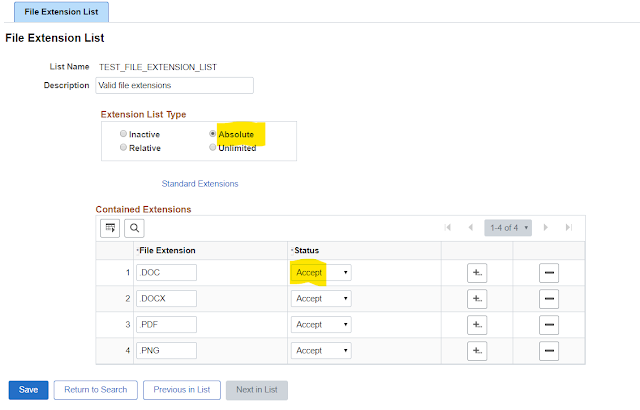
How to restrict File Types (extensions) in PeopleSoft
I recently had a requirement to only allow certain types of files to be uploaded to PeopleSoft. I wanted a solution that didn't requir...
-
 I recently had a requirement to only allow certain types of files to be uploaded to PeopleSoft. I wanted a solution that didn't requir...
-
I recently found a nifty tool that works with the Chrome browser called PS Utilities. It is very handy to find page and field information. C...
-
I ran into a situation where I needed to find out what query tree and access group a particular user had access too. I used the sql below t...